Add Your Card to
Your Mobile Wallet

Use your plastic or virtual debit card to make purchases
today, almost anywhere, instantly and securely.

Adding a Virtual Card to Your
Mobile Wallet?

Make instant payments by adding your
virtual card to your mobile wallet. This card is also available in your PayQuicker payment portal.

Adding Your Plastic Debit Card to Your Mobile Wallet?

Add your plastic debit card to your Apple Pay or Google Pay mobile wallet for a safe and simple way to make payments in-store or online.

BENEFITS AND VALUE

Enjoy the same protection and benefits as always when using your card in your mobile wallet.

Private and Secure
By adding your debit card into your Apple Pay and Google Pay mobile wallets, your card information is never shared with any merchant. Mobile wallets use tokenization technology that provide an added layer of security to your information.
Fast and Easy
Add your plastic or virtual Card to your mobile wallet with ease, allowing you instant access to your funds at the slightest tap of your finger, whether you’re making an in-store or online purchase.
Control and Certainty
Keep a better record of your business or personal expenses by viewing your latest transactions right in your mobile wallet. If you suspect fraud, you can contact PayQuicker Customer Support directly in your mobile wallet app.

HOW TO

Add Your Virtual Card to Your Mobile Wallet
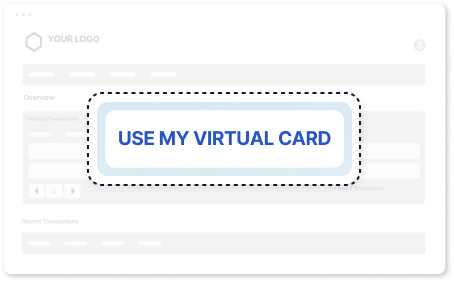
Step 1:
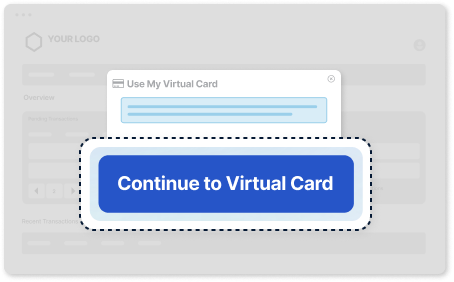
In your payment portal on the Account Overview Page, Click the USE MY VIRTUAL CARD button.
Step 2:
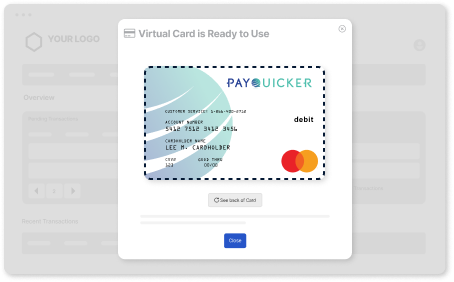
Click Continue to Virtual Card to view your card details.
Step 3:
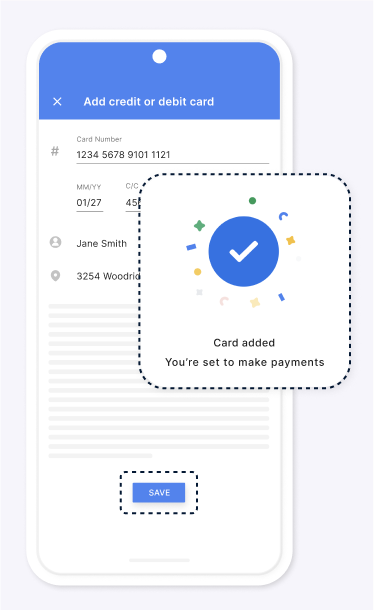
Copy and then manually enter your virtual card details according to the steps of adding your virtual card to your Apple Pay or Google Pay mobile wallets.

HOW TO

Add Card to Apple Pay Mobile Wallet
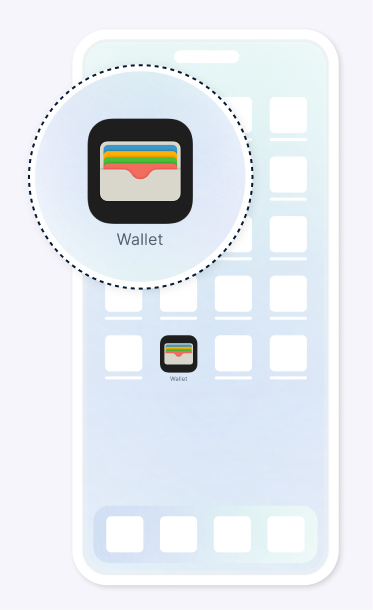
Step 1:
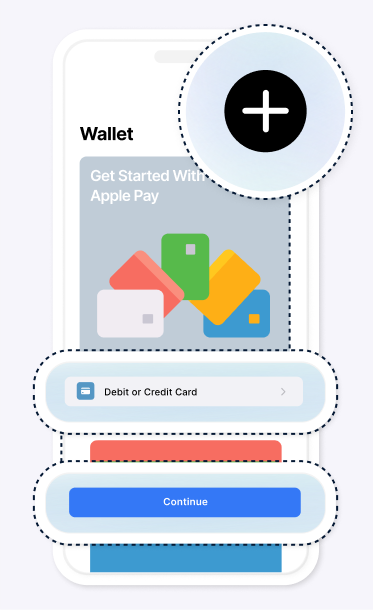
Open the Wallet app on your Apple device.
Step 2:
Tap the add card icon, select the Debit or Credit Card tab and click the Continue button.
Step 3:
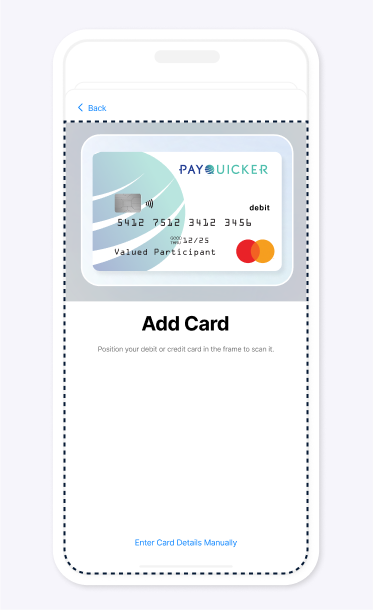
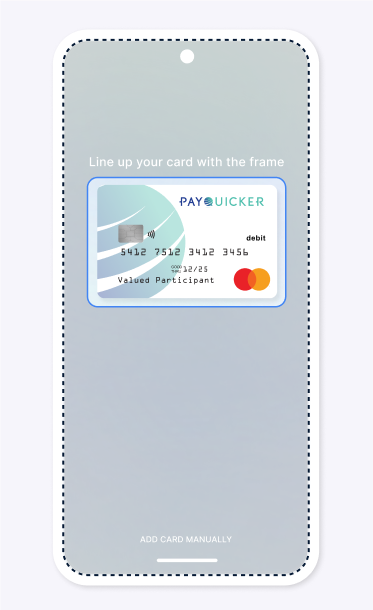
Scan your plastic card or choose to enter your card details manually.
Step 4:
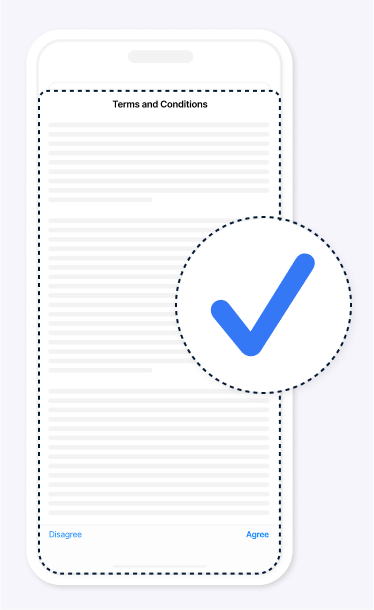
Follow your bank instructions by accepting the Terms and Conditions.

HOW TO

Add Card to Google Pay Mobile Wallet
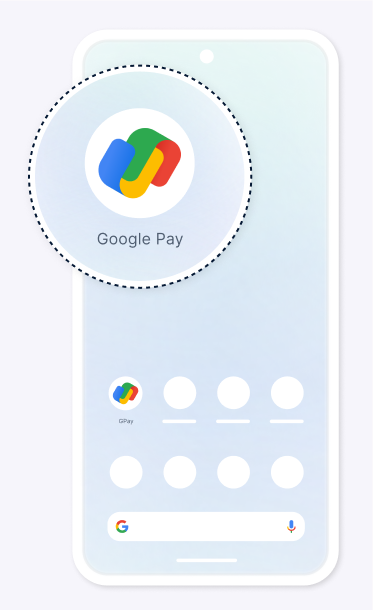
Step 1:
Open the Google Pay app on your smart device.
Step 2:
At the top bottom right tap the Insights icon, select Show all accounts, then click the Add card button.
Step 3:
Scan your plastic card or choose to enter your card details manually.
Step 4:
Read the Terms and Conditions and tap the Save button.

Where and How to Use Your Card

In-Store

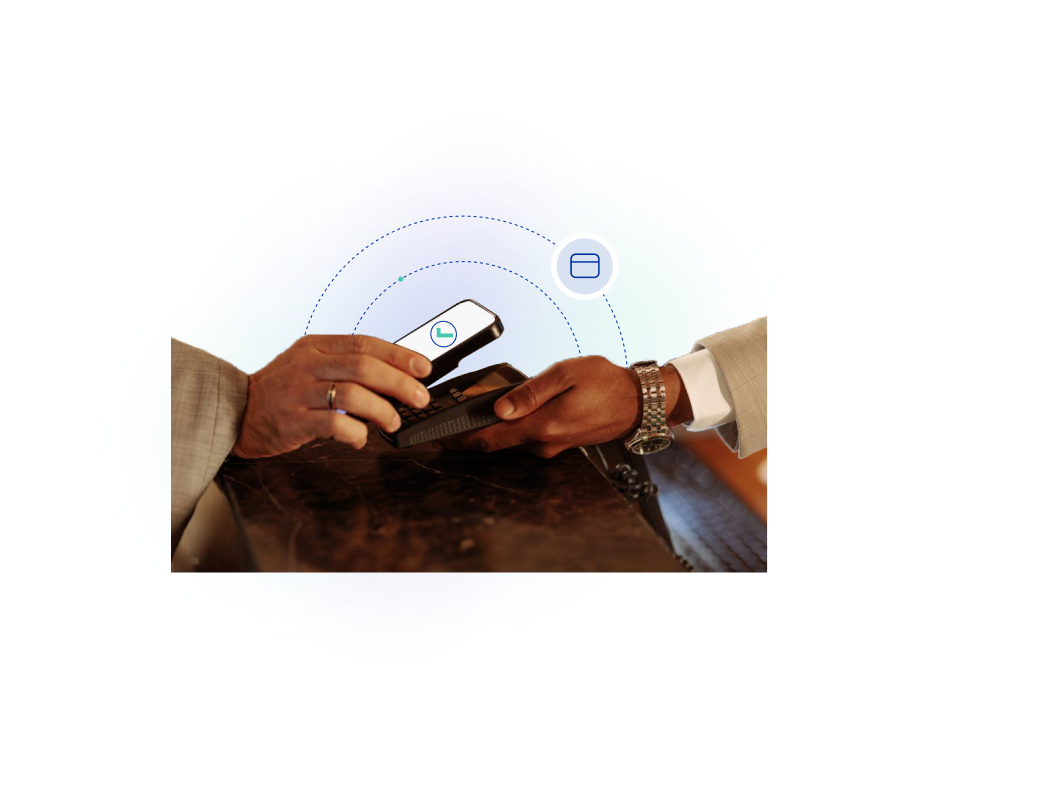
Face ID: Double tap the side button of your iPhone, unlock your card by looking at the screen, and hold your phone near the checkout terminal with the cardless symbol.

Touch ID: Rest your finger on Touch ID and hold your phone near the checkout terminal where you see the cardless reader.


Step 1: Unlock your phone and open the Google Wallet app.
Step 2: Hold your phone near the checkout terminal.
Step 3: Look for the check mark to confirm that the purchase is complete.

Online

At checkout, choose Apple Pay and complete the payment with Face ID or Touch ID.


At checkout, tab on the Google Pay button, choose your card, and confirm your order.

Additional Questions?

If you need further assistance or have any additional questions
about your payment account, please visit our Help Center.